
Your high-end gaming monitor might look impressive, but if it’s still running on factory settings, you’re leaving performance on the table. Default presets often sacrifice clarity, motion sharpness, and response precision—small losses that can cost you crucial milliseconds in competitive play. This guide breaks down the best monitor settings for gaming, walking you step by step through the adjustments that actually matter. From refresh rate and response time to brightness, contrast, and gamma, you’ll learn not just what to change, but why it sharpens your edge—so you can spot enemies faster, react quicker, and play at your true potential.
The Foundation: Nailing Brightness, Contrast, and Sharpness
Let’s start with a hard truth: most players sabotage their visuals before the match even loads.
Brightness isn’t about pushing the slider to 100. It’s about balancing luminance (the measurable intensity of light a screen emits) with your room’s ambient light. Too high, and blacks turn gray and washed out. Too low, and shadow detail disappears—perfect for horror games, terrible for spotting a crouched opponent in a dim corridor. Some argue max brightness improves reaction time. However, research shows excessive screen brightness increases eye strain and fatigue during extended sessions (American Optometric Association). In other words, you’ll burn out before the final round. Adjust until blacks look truly black but shadow shapes remain visible.
Next, contrast controls the difference between the darkest and brightest parts of an image. Higher contrast creates that punchy, cinematic feel. Yet cranking it up clips highlight detail—meaning bright skies or muzzle flashes blur into blobs. Competitive players often overlook this subtle loss (and yes, that hidden sniper loves it). Aim for separation, not spectacle.
Finally, sharpness. This setting adds artificial edge enhancement—digital outlining that can create halos and visual noise. Counterintuitive as it sounds, lowering sharpness often produces a cleaner image. Think less soap-opera filter, more natural clarity.
Dialing in these three is the real starting point for the best monitor settings for gaming. Get this right, and every other tweak becomes easier.
Unlocking True Speed: Refresh Rate and Response Time
If your gameplay feels sluggish, your monitor might be the bottleneck. First and foremost, verify your refresh rate. Refresh rate (Hz) refers to how many times per second your display updates the image. A 144Hz monitor refreshes 144 times per second—more than double a standard 60Hz panel. According to NVIDIA, higher refresh rates can significantly improve motion clarity and reduce perceived input lag in fast-paced games.
Yet surprisingly, many systems default to 60Hz. To confirm yours:
- Open your OS display settings.
- Navigate to Advanced Display.
- Select your monitor.
- Choose the highest available refresh rate from the dropdown menu.
Next, consider response time, which measures how quickly pixels transition between colors (usually in milliseconds). Lower response times reduce motion blur. However, enabling aggressive Overdrive settings—often labeled Normal, Fast, or Fastest—can introduce overshoot (also called inverse ghosting). Overshoot appears as bright halos trailing moving objects because pixels transition too aggressively.
Independent monitor tests from sites like RTINGS consistently show that mid-level Overdrive settings often provide the best balance between blur reduction and minimal overshoot.
So how do you find your ideal setting?
- Set Overdrive to Normal and test fast motion scenes.
- Increase to Fast and observe clarity improvements.
- Stop increasing once halos or strange artifacts appear.
In other words, push performance—but not past stability. Competitive players chasing the best monitor settings for gaming often discover that “Fast” beats “Fastest.” Think of it like tuning a race car: maximum throttle isn’t always maximum control.
Ultimately, smooth motion isn’t magic—it’s configuration backed by measurable results.
The Competitive Edge: Color, Gamma, and Shadow Control
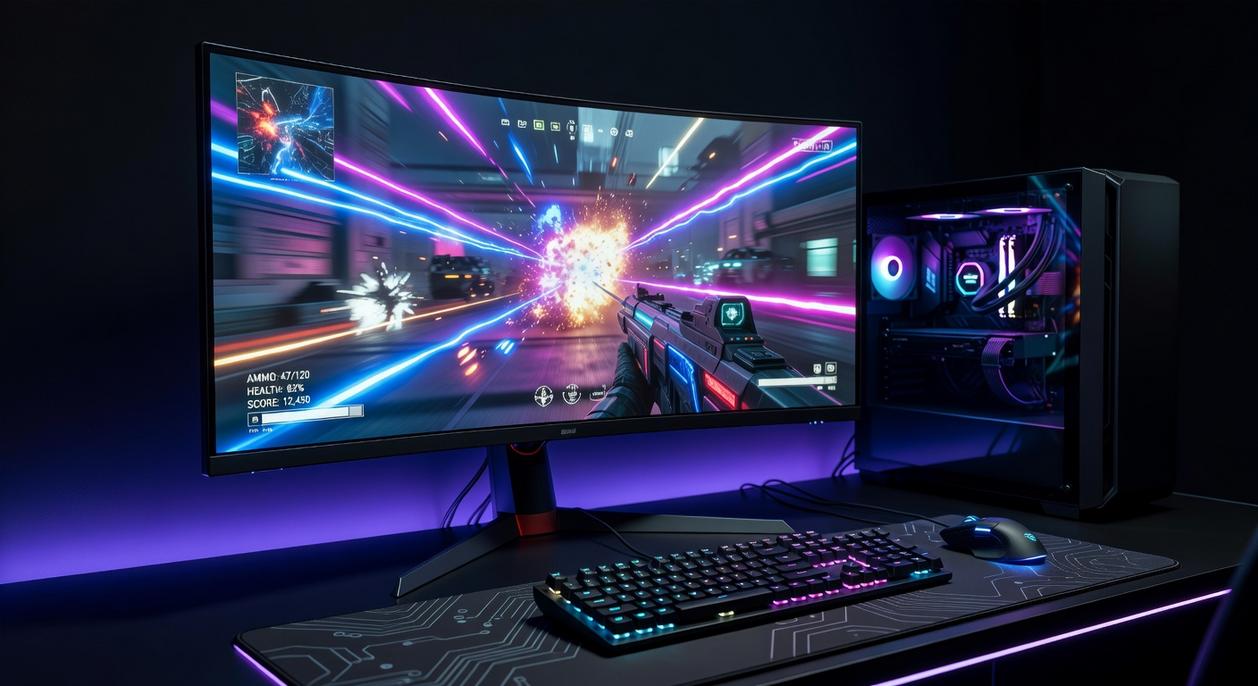
If you care about winning gunfights, your monitor settings are not cosmetic—they’re tactical.
Color Saturation & Vibrance
Color saturation refers to how intense and vivid colors appear. While creators prioritize accuracy, competitive gamers benefit from slightly boosted vibrance. Why? Because oversaturated reds, greens, and blues help:
- Enemy models pop against muted backgrounds
- UI elements stand out instantly
- Environmental cues (like ability effects) become easier to track
The benefit is simple: faster visual processing equals faster reactions. Studies show visual contrast improves target detection speed (Palmer, Vision Science, 1999). In tight fights, milliseconds matter.
Some argue oversaturation looks unrealistic. True—but you’re not grading a film. You’re trying to win.
Gamma Settings: Your Shadow Advantage
Gamma controls mid-tone brightness—the range between pure black and pure white. Increasing gamma brightens shadowed areas without blowing out highlights.
This means you can:
- Spot opponents hiding in corners
- Maintain detail in dark hallways
- Avoid the washed-out look caused by raising overall brightness
Think of it as selectively lifting the curtain on dark areas (like turning on night vision, minus the green filter).
Black Stabilizer / Shadow Boost
This feature specifically targets deep blacks and lifts them for clarity. In competitive FPS titles, it’s practically mandatory.
Benefits include:
- Clearer visibility in low-light maps
- Reduced eye strain during long sessions
- A measurable information advantage
Pro tip: Increase shadow boost gradually to avoid gray-looking blacks.
Dialing these in—alongside guides like choosing the right gaming mouse dpi and sensitivity—helps you build the best monitor settings for gaming and turn visibility into victory.
Advanced Features: Adaptive Sync and HDR Explained
Adaptive Sync (G-Sync/FreeSync) aligns your monitor’s refresh rate with your GPU to eliminate screen tearing—those horizontal splits that ruin immersion. In single-player RPGs, it’s a no-brainer. However, in competitive shooters, some players disable it to shave off minimal input lag.
HDR (High Dynamic Range) expands contrast and color depth for highlights and shadows. It looks cinematic—think visuals—but that extra processing can delay response and shift color accuracy.
Side-by-side:
- Adaptive Sync on: smoother motion, slight lag risk
- HDR on: vivid image, latency trade-off
Choose based on best monitor settings for gaming goals.
Building Your Ultimate Gaming Profile
You set out to create a setup that actually gives you an edge—and now you understand how motion clarity, image depth, and tactical visibility work together. Dialing in refresh rate and overdrive sharpens responsiveness. Fine-tuning contrast and gamma deepens immersion. Adjusting black stabilizer reveals enemies hiding in the shadows. That balance is what separates casual play from competitive consistency.
Don’t settle for factory defaults. Use this framework to test, tweak, and save a dedicated preset built around the best monitor settings for gaming so it’s always one click away.
If you’re tired of inconsistent performance holding you back, optimize your display today and gain the measurable advantage your matches demand.

 Ask Eddie Sanfordstirs how they got into multiplayer arena strategies and you'll probably get a longer answer than you expected. The short version: Eddie started doing it, got genuinely hooked, and at some point realized they had accumulated enough hard-won knowledge that it would be a waste not to share it. So they started writing.
What makes Eddie worth reading is that they skips the obvious stuff. Nobody needs another surface-level take on Multiplayer Arena Strategies, Controman Competitive Meta Analysis, Hot Topics in Gaming. What readers actually want is the nuance — the part that only becomes clear after you've made a few mistakes and figured out why. That's the territory Eddie operates in. The writing is direct, occasionally blunt, and always built around what's actually true rather than what sounds good in an article. They has little patience for filler, which means they's pieces tend to be denser with real information than the average post on the same subject.
Eddie doesn't write to impress anyone. They writes because they has things to say that they genuinely thinks people should hear. That motivation — basic as it sounds — produces something noticeably different from content written for clicks or word count. Readers pick up on it. The comments on Eddie's work tend to reflect that.
Ask Eddie Sanfordstirs how they got into multiplayer arena strategies and you'll probably get a longer answer than you expected. The short version: Eddie started doing it, got genuinely hooked, and at some point realized they had accumulated enough hard-won knowledge that it would be a waste not to share it. So they started writing.
What makes Eddie worth reading is that they skips the obvious stuff. Nobody needs another surface-level take on Multiplayer Arena Strategies, Controman Competitive Meta Analysis, Hot Topics in Gaming. What readers actually want is the nuance — the part that only becomes clear after you've made a few mistakes and figured out why. That's the territory Eddie operates in. The writing is direct, occasionally blunt, and always built around what's actually true rather than what sounds good in an article. They has little patience for filler, which means they's pieces tend to be denser with real information than the average post on the same subject.
Eddie doesn't write to impress anyone. They writes because they has things to say that they genuinely thinks people should hear. That motivation — basic as it sounds — produces something noticeably different from content written for clicks or word count. Readers pick up on it. The comments on Eddie's work tend to reflect that.