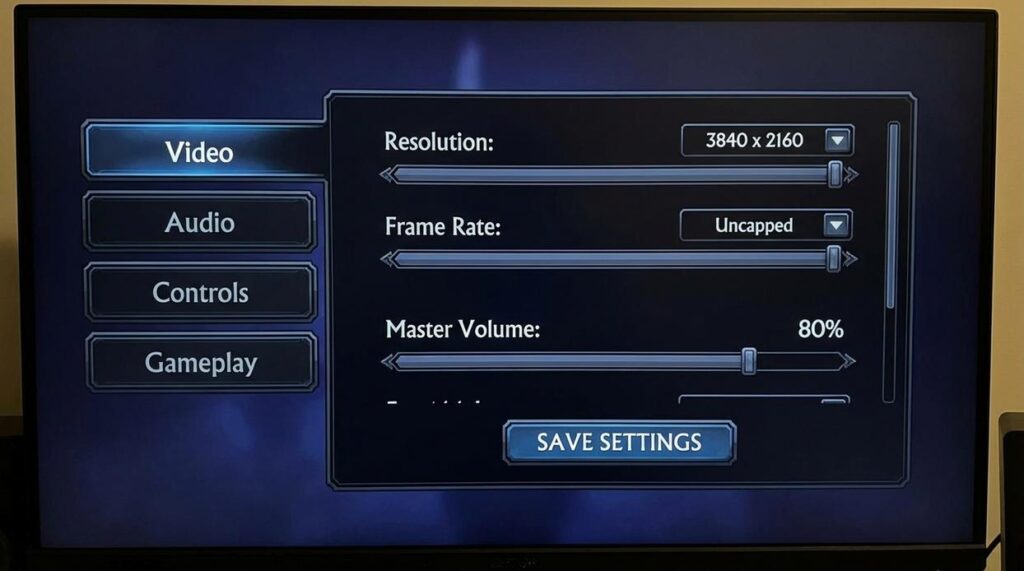
Every millisecond matters when you’re competing online. Whether you’re grinding ranked matches, pushing for higher DPS, or clutching in a final-circle showdown, performance issues can be the difference between winning and watching the respawn screen. If you’re here, you’re likely looking for practical, proven ways to reduce input lag in games and gain a real competitive edge.
This guide is built specifically to address that need. We break down what input lag actually is, why it happens, and how it affects your reaction time, aim consistency, and overall gameplay performance. More importantly, we provide actionable optimization techniques—from hardware tweaks to in-game settings adjustments—that you can apply immediately.
Our recommendations are based on hands-on testing across competitive titles, analysis of current multiplayer performance standards, and deep familiarity with modern gaming hardware and meta-level play. By the end of this article, you’ll know exactly how to fine-tune your setup for faster response times and smoother, more competitive gameplay.
Understanding the Chain of Delay: What is Input Lag?
Input lag—also called system latency—is the total time between your mouse click or key press and the moment the corresponding pixel changes on screen. In simple terms, it’s the delay between action and reaction. Even a split second matters (just ask any fighting game player who missed a parry).
However, input lag isn’t the same as other performance issues. It’s often confused with:
- Network lag (ping): Delay between your system and a game server.
- Low FPS (rendering lag): When your GPU can’t produce frames fast enough.
- Input lag: Local delay within your own hardware chain.
So where does the delay happen? The journey looks like this: Peripheral → PC Processing → GPU Rendering → Display. Each stage can add milliseconds. I’ll admit, exact measurements can vary wildly by setup, and not every test agrees on which stage adds the most delay.
Still, understanding this chain is the first step to reduce input lag in games—and yes, even tweaks like those in how to optimize your gaming pc for maximum fps can help.
Your First Line of Defense: In-Game and Software Settings
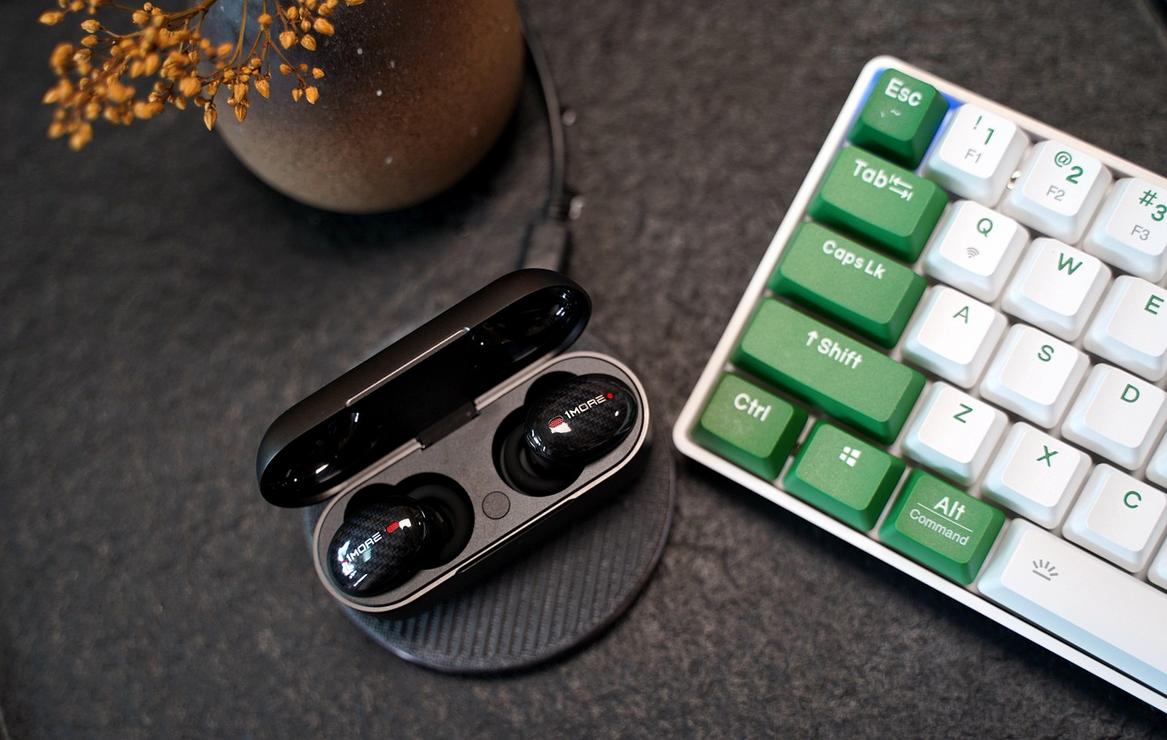
Before you blame your mouse, your monitor, or “server lag,” start with software. The right settings can dramatically reduce input lag in games—and the wrong ones can quietly sabotage you.
1. Graphics Driver Settings: Ultra-Low Latency vs Anti-Lag
NVIDIA Ultra-Low Latency Mode (found in NVIDIA Control Panel) reduces the number of frames queued by the CPU. Set it to Ultra for competitive titles.
AMD Anti-Lag (in Radeon Software) achieves a similar effect by synchronizing CPU and GPU workloads.
A vs B:
- Default driver settings = extra queued frames = delayed reactions.
- Ultra-Low Latency/Anti-Lag enabled = tighter frame timing = faster on-screen response.
(Pro tip: Apply these per-game instead of globally if you switch between competitive and cinematic titles.)
2. The V-Sync Trap
V-Sync eliminates screen tearing by forcing frame sync with your monitor’s refresh rate. Sounds great—until you realize it adds input delay (NVIDIA, AMD documentation).
V-Sync On: Smoother image, slower response.
G-Sync/FreeSync or FPS cap: Smooth and responsive.
If your monitor supports adaptive sync, use it. Otherwise, cap FPS slightly below refresh rate (for example, 141 FPS on 144Hz).
3. Optimizing In-Game Menus
Small toggles, big difference:
- Fullscreen (exclusive), not borderless.
- Disable Motion Blur.
- Reduce Post-Processing Effects.
These features look cinematic (hello, Hollywood), but competitive play favors clarity and speed.
4. NVIDIA Reflex: Non-Negotiable
In supported games, enable NVIDIA Reflex → On + Boost. Reflex minimizes render queue latency at the engine level (NVIDIA Developer Docs).
Reflex Off vs On + Boost? The difference can feel like shaving milliseconds off every gunfight—and in ranked matches, milliseconds decide everything.
Hardware Upgrades That Directly Impact Responsiveness
I still remember the first time I switched from a 60Hz monitor to 144Hz. It felt like someone had wiped a layer of grease off my screen. Tracking targets suddenly felt tight. That wasn’t placebo. Refresh rate—measured in hertz (Hz), or how many times your screen updates per second—directly affects the “scanout” phase of input lag, which is the time it takes for a frame to fully draw on your display. At 60Hz, a frame can take up to 16.6ms to scan out. At 144Hz, that drops to about 6.9ms. Less waiting. More reacting.
Response time (often listed as 1ms GtG, meaning gray-to-gray pixel transition speed) also matters. Lower response times reduce motion blur and ghosting, keeping fast flicks crisp instead of smeared.
Peripherals are the next battlefield. I used to swear by wired mice—“wireless is slower,” I’d argue. That was true a decade ago. Modern wireless tech like Logitech Lightspeed and Razer HyperSpeed now matches or even beats wired latency in real-world tests (RTINGS, 2023). The freedom of no cable drag actually improved my consistency.
Polling rate is another overlooked lever. Polling rate refers to how often your mouse reports its position to your PC. Set it to 1000Hz (1,000 reports per second) or higher in your mouse software:
- Open your device settings
- Select 1000Hz or 2000Hz
- Apply and test stability
Higher polling means more frequent updates, which helps reduce input lag in games.
Finally, use DisplayPort over HDMI for high-refresh PC gaming. DisplayPort generally supports higher bandwidth and refresh rates more reliably (VESA standards). Pro tip: always double-check your cable spec—your monitor can’t show frames it never receives.
Advanced System Tweaks for Maximum Performance
When you’re chasing silky-smooth frames, every millisecond matters. Start with Windows optimizations. Disable mouse acceleration (“Enhance pointer precision”) so your aim feels raw and one-to-one—no weird floatiness when you flick. Switch to the High Performance power plan to keep your CPU from downclocking mid-fight (that sudden stutter you feel in your wrist? That’s often power scaling). Turn on Game Mode so background tasks don’t nibble at your resources.
Dive into BIOS/UEFI next. Enabling XMP/DOCP lets your RAM run at its rated speed, reducing memory latency. Disabling C-States can minimize processing delays by preventing cores from “napping” between tasks. The result? Inputs feel tighter, like the click of your mouse snaps instantly to the screen.
Finally, debloat. Kill unnecessary startup apps and overlays—Discord, RGB controllers, even some antivirus tools. They clutter the rendering pipeline and add delay. Clean systems don’t just look lighter—they sound quieter and reduce input lag in games.
Level Up Your Performance Today
You came here looking for real ways to sharpen your gameplay and gain a competitive edge. Now you understand how smart strategy, optimized settings, and the right gear choices can dramatically improve your results.
The frustration of losing fights due to slow reactions, delayed inputs, or inconsistent performance is real. In competitive matches, every millisecond matters. When your setup holds you back, it doesn’t matter how skilled you are — you’re already at a disadvantage. That’s why learning how to reduce input lag in games and fine-tune your system is such a game-changer.
The next move is yours.
Start applying these optimization techniques today. Adjust your in-game settings, upgrade weak hardware links, and refine your multiplayer strategies. Small changes stack up fast.
If you’re serious about climbing ranks, mastering the meta, and squeezing every ounce of performance from your setup, dive deeper into our expert-backed guides and competitive breakdowns. Thousands of players rely on our strategies to stay ahead — now it’s your turn.
Optimize your setup, sharpen your skills, and take control of every match starting now.